Outbound Proxy
By default SAMURAI Networks dials every managed device and internet integration directly. In segmented networks the server often cannot reach the device-management subnets or the internet at all; traffic must leave through a gateway. The Outbound proxy section in Settings → Network & Security solves this: it routes outbound connections through one or more SOCKS5 proxies, with deterministic per-subnet and per-device rules, proxy pooling, live health checks and automatic failover.
The section is visible to administrators and to any role holding the proxy.manage
permission. Configuration is hot-reloaded: saving applies immediately, no restart needed.
Why SOCKS5 and not an HTTP proxy? Outbound traffic is mixed-protocol: HTTPS device APIs, SSH, LDAP and SMTP. A SOCKS5 proxy tunnels all of them at the TCP layer and keeps TLS end-to-end between SAMURAI Networks and the device. An HTTP forward proxy can only carry HTTP(S), so it could not route SSH or LDAP connections.
What traffic is routed
Every outbound connection funnels through the proxy router. Device connections are routed by the rules that match the device; connections with no device (internet integrations) use the default target.
| Traffic | Routed by |
|---|---|
| Device HTTPS APIs (APIC, NDO, FMC, Palo Alto, FortiGate, ISE, vCenter) | Device rules |
| SSH (routers, switches, FTD / ASA) | Device rules |
| LDAP / Active Directory (device sync and user sign-in) | Device rules |
| Device monitoring probes (TCP / HTTP up-checks) | Device rules |
| Email (SMTP) and Telegram notifications | Default target |
Other outbound traffic (Slack / Discord / Teams / webhook notifications, incident systems, AI providers, and license verification) currently dials direct and is not affected by proxy rules.
When the proxy is Off (or disabled), every connection dials direct, exactly as before the feature existed. There is zero overhead in that state.
Concepts
| Term | Meaning |
|---|---|
| Proxy | One SOCKS5 endpoint (host:port), optionally with username / password auth. |
| Pool | A named group of proxies with load-balancing (round-robin or random) and failover. Rules always reference a pool, never a single proxy. |
| Rule | An ordered CIDR → target entry. The first rule whose CIDR contains the device management IP wins. Target is a pool or Direct. |
| Default target | Where unmatched traffic goes: Direct or a pool. Internet integrations always use this. |
| Per-device override | Pins one device to a pool or to Direct, beating every CIDR rule. |
Modes
| Mode | Behavior |
|---|---|
| Off | All traffic dials direct. |
| Routed | Per-rule / per-device routing (the normal production mode). |
| Enforce-all | Every outbound connection goes through one designated pool, ignoring all rules. If that pool is unreachable, those connections fail by design. The UI asks for confirmation before enabling it. |
Routing precedence
For each connection the route is resolved in this order; the first match wins:
- Proxy disabled or mode Off → direct.
- Mode Enforce-all → the enforce pool.
- Per-device override for that device → its target.
- First matching CIDR rule against the device management IP → its target.
- Default target (also used by integrations, which have no device).
Devices addressed by DNS name (for example https://apic.dc1.example.local) are resolved
to their IP at routing time (with a short-lived cache) so CIDR rules still apply. If the
name does not resolve, the device falls through to the default target; use a per-device
override when you need a deterministic route for a hostname-addressed device.
Set up a SOCKS5 proxy
You need a gateway host that can reach both the SAMURAI Networks server and the target subnets (or the internet). Any standards-compliant SOCKS5 server works; three common options, from quickest to most production-ready:
Option 1: SSH dynamic forward (quick test)
If you can SSH to the gateway, you already have a SOCKS5 proxy. Run on the SAMURAI Networks server:
ssh -f -N -D 127.0.0.1:1080 [email protected]Then add 127.0.0.1:1080 as a proxy (no username / password). Traffic egresses from the
gateway. Good for a proof of concept; the tunnel does not survive reboots.
Option 2: Docker container
On a gateway host running Docker:
docker run -d --name socks5 --restart unless-stopped \
  -p 1080:1080 \
  -e PROXY_USER=samurai \
  -e PROXY_PASSWORD='<strong password>' \
  serjs/go-socks5-proxy
Omit the two -e lines to run without authentication (only acceptable inside a trusted
management segment).
Option 3: Dante (production, Linux)
sudo apt install dante-serverMinimal /etc/danted.conf allowing only the SAMURAI Networks server, with
username / password auth against a dedicated system account:
logoutput: syslog
internal: 0.0.0.0 port = 1080
external: eth0
socksmethod: username
user.privileged: root
user.unprivileged: nobody

client pass { from: <samurai-server-ip>/32 to: 0.0.0.0/0 }
socks pass  { from: <samurai-server-ip>/32 to: 0.0.0.0/0 protocol: tcp }
sudo useradd -r -s /usr/sbin/nologin samurai-proxy
sudo passwd samurai-proxy
sudo systemctl enable --now dantedFirewall openings
| From | To | Port |
|---|---|---|
| SAMURAI Networks server | Proxy host | TCP 1080 (or your chosen port) |
| Proxy host | Device subnets | The per-platform management ports listed in Device Onboarding |
| Proxy host | Internet (only if integrations route through it) | TCP 443, plus your SMTP port |
The health checker probes each proxy from the SAMURAI Networks server every 30 seconds by default, so the first opening is also what keeps the Up badge alive.
Configure SAMURAI Networks
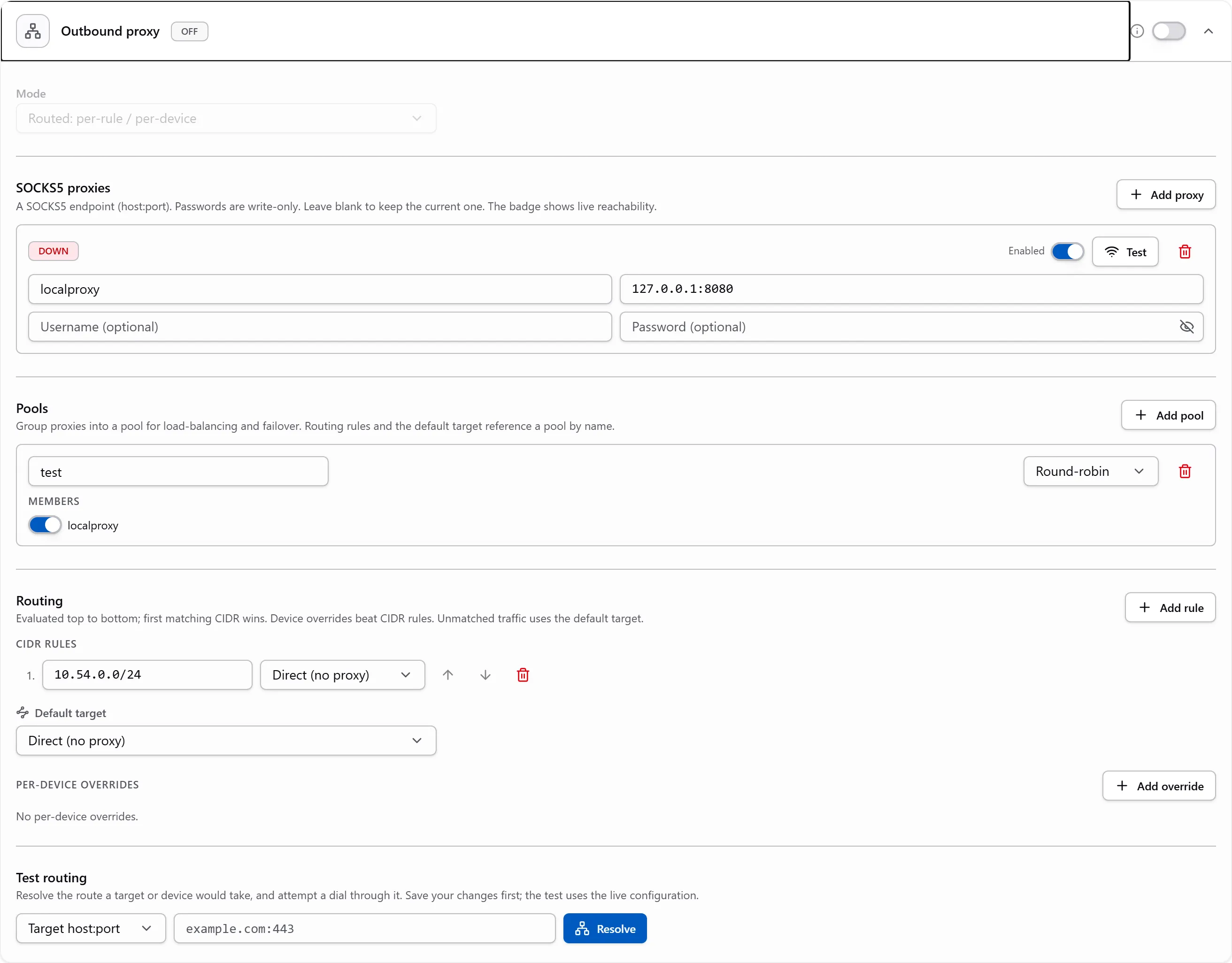
- Open Settings → Network & Security → Outbound proxy and flip the toggle in the card header to enable the feature.
- Under SOCKS5 proxies, click Add proxy and enter a label and the
host:portaddress, plus the username / password if the proxy requires auth. Passwords are write-only: the UI never displays a saved password, and leaving the field blank on a later edit keeps the current one. - Save, then check the badge on the proxy row: it turns Up once the background health probe completes a SOCKS5 handshake. Test performs the same check on demand.
- Under Pools, click Add pool, name it, toggle the member proxies in, and pick the balance strategy (round-robin or random). Even a single proxy needs a pool: rules reference pools, and a pool of one still gives you health-gating.
- Under Routing, add CIDR rules for the subnets that must traverse the proxy, in priority order (first match wins; use the arrows to reorder). Point each rule at a pool, or at Direct to explicitly exempt a subnet.
- Set the Default target: keep Direct if only specific subnets need the proxy, or select a pool to send everything unmatched (including internet integrations) through it.
- Add per-device overrides for exceptions: a device that must always use a specific pool, or one that must stay direct regardless of the subnet rules.
- Pick the Mode (usually Routed) and Save changes.
Verify
Two built-in checks, both under the same card:
- Test (per proxy row): performs a live SOCKS5 handshake against that proxy and reports reachable / unreachable.
- Test routing: enter a
host:porttarget or pick a device, then click Resolve. For a target, SAMURAI Networks resolves the route and attempts a real dial through it, reportingOK - route: <pool or direct>. For a device, it reports the route the device would take, including the resolved IP when the device is addressed by hostname.
Save first: both checks run against the live (saved) configuration, and the buttons are disabled while the form has unsaved changes.
Health checks and failover
- Every enabled proxy is probed on an interval (default every 30 seconds, 5-second timeout) with a full SOCKS5 greeting, including auth when configured. The result drives the Up / Down / Unknown badge; hover a Down badge for the last error.
- Pools balance across healthy, enabled members only. If a dial through the chosen member fails anyway, the pool advances to the next healthy member (one pass); if every member fails, the connection errors and the device is reported unreachable.
- In Enforce-all mode with no healthy pool member, every outbound connection fails until the pool recovers. That is intentional (fail-closed); prefer Routed mode with explicit rules when partial reachability matters.
Security notes
- Proxy passwords are encrypted at rest (AES-256-GCM) and never returned by the API; the UI only shows whether a password is set.
- SOCKS5 username / password authentication (RFC 1929) sends credentials in cleartext inside the SOCKS handshake. Run proxies inside a trusted management segment and restrict the listener to the SAMURAI Networks server address, as in the Dante example.
- Access to this section is gated by the
proxy.managepermission, so it can be delegated without granting full administration. Manage roles under Settings → Access. - The proxy only changes the network path. Device credentials, TLS verification and the read-only connection model described in Device Onboarding are unchanged.
Troubleshooting
| Symptom | Likely cause / fix |
|---|---|
| Proxy badge stays Down | The server cannot reach host:port (firewall), the SOCKS service is not listening, or the credentials are wrong. Hover the badge for the exact error. |
| Badge shows Unknown | No probe result yet. Wait one health interval or click Test. |
| A device routes direct despite a matching rule | The device is addressed by a hostname that did not resolve, so it fell to the default target. Check DNS from the server or pin the device with a per-device override. |
| Wrong pool chosen | Rules are evaluated top to bottom and the first match wins. Reorder with the arrows; remember overrides beat rules. |
| Test buttons disabled | Unsaved changes in the form. Save first; tests always run against the live configuration. |
| Everything unreachable after enabling Enforce-all | The enforce pool has no healthy member. Fix the proxy or switch back to Routed / Off; the change applies on save without a restart. |